
Install a Plugin
Install a plugin from the store or from a folder, approve its permissions, and enable, disable, update, or remove it.
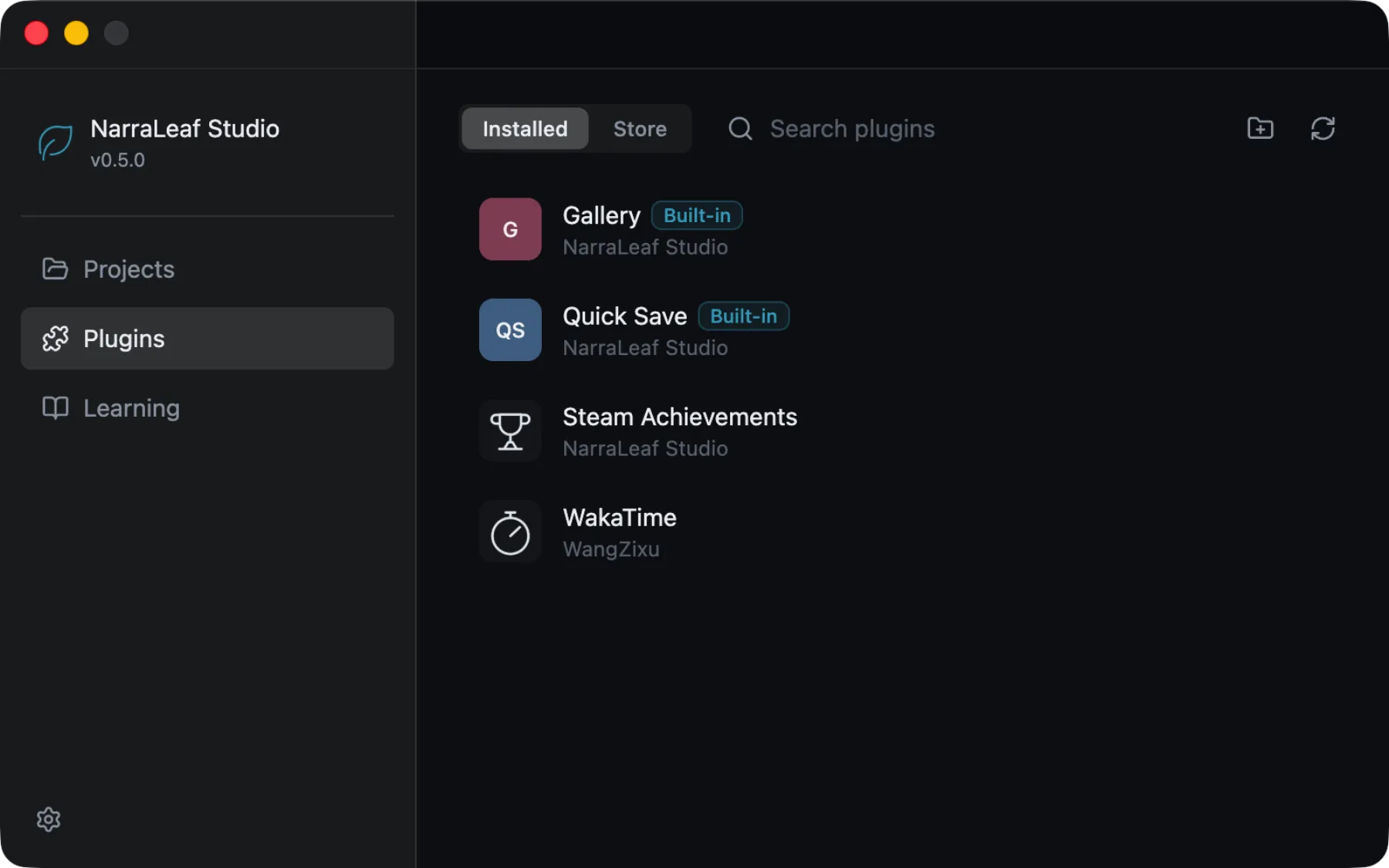
Plugins are managed in the Launcher under Plugins, which has two lists: Installed and Store. You can install from the store, or from any folder on disk.
From the store
The store lists plugins from a registry index. By default that is the official NarraLeaf/Plugins index — a curated repository whose plugins are reviewed for behavior and permissions, not just for whether they build. Point it elsewhere with Registry URL in Settings; leaving it empty uses the official one.
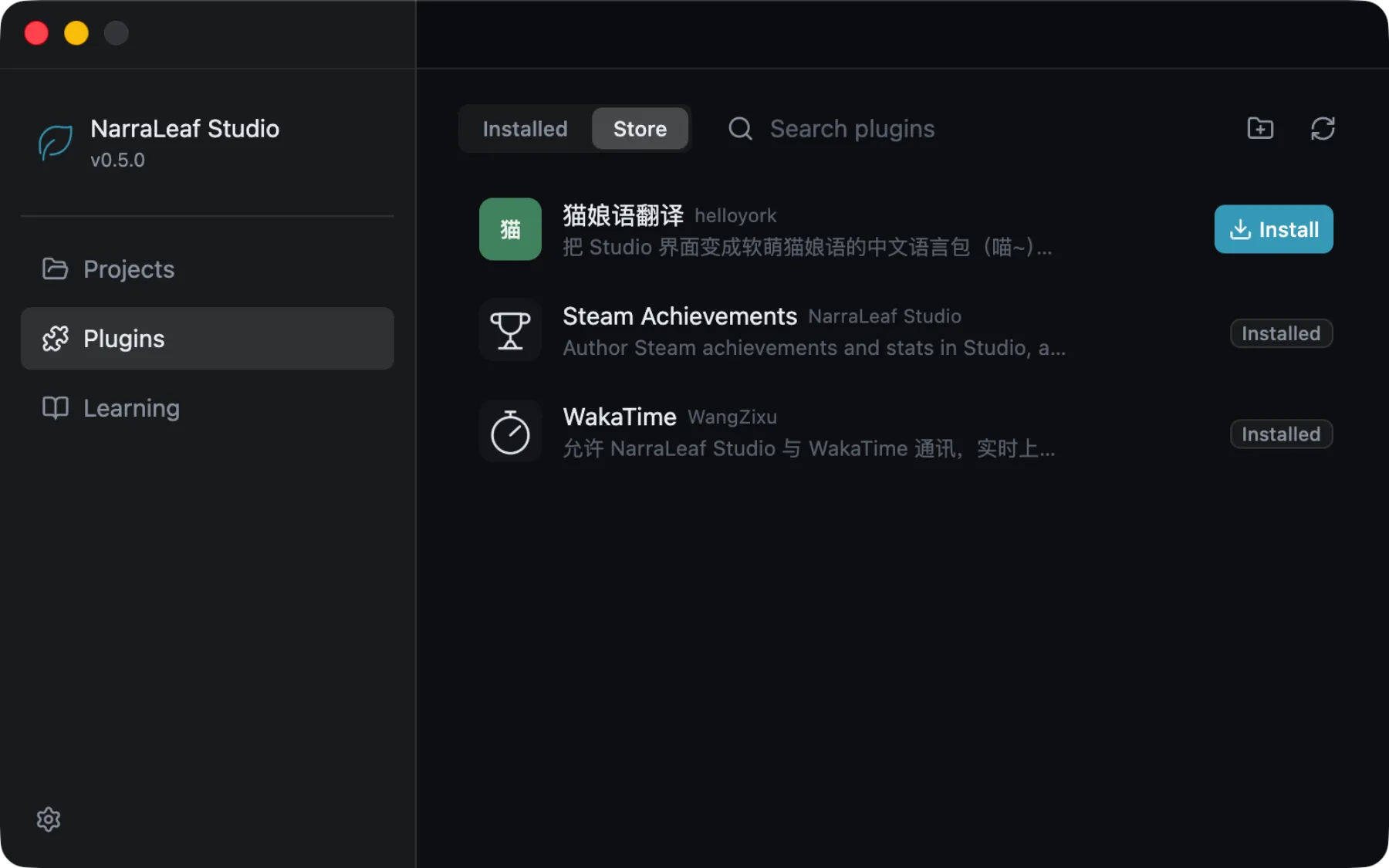
Choosing Install downloads the release, installs it, and takes you straight to the permission prompt. If a plugin declares a Studio version range that excludes your build, the button is withheld and the row says which version it needs, rather than letting the install fail later.
If Studio cannot reach the registry the Store list says so and offers a retry. Nothing else is affected — the Installed list and everything already installed keep working offline.
From a folder
A plugin is a folder containing manifest.json and its built entry files. Any such folder installs, whether it came from a release zip or straight out of your own dist/.
Get the plugin
Download the plugin's release (a .zip) and unzip it. You should end up with a folder containing manifest.json at its top level:
hello-1.0.0/
  manifest.json
  main.js
  runtime.js
Install from folder
In Plugins, choose Install from folder and pick that folder. Studio validates the manifest and copies the plugin into its own storage.
Approve permissions
Studio shows a prompt listing exactly what the plugin asks for. Review it and approve or decline. A plugin that asks for nothing installs without a prompt.
What the prompt lists
The prompt is not a summary a plugin author wrote — most of it is computed from the plugin's declarations, so it cannot understate what the plugin can do.
| Entry | Comes from |
|---|---|
| Filesystem access to a path | The author writing a filesystem permission. Affects the editor only. |
An API capability such as bash.execute | The author writing an api permission. Editor only. |
| A game-side capability — storage, story variables, saves, an on-screen overlay, packaged assets, the game language | Each entry the plugin declared in contributes.runtimeCapabilities. |
| A native program bundled into games you build | Each declared sidecar, with the platforms it ships binaries for and its fingerprint. |
| Binaries downloaded when you build | Each declared build dependency, with the hostnames it fetches from. |
The last three are derived: Studio computes them from contributes and rejects a manifest that tries to write them by hand. That is what stops "what the prompt said" from drifting away from "what the plugin can reach" — a capability is declared in exactly one place, and the plugin's API surface is built from that same declaration. An undeclared capability is not merely un-prompted; it is absent from the plugin's API object entirely.
Two entries deserve a second look before you approve:
- Overwriting saves. A plugin with
saves.writecan overwrite a save slot and load one, which replaces the running playthrough. Quick-save plugins legitimately need this; most plugins do not. - A bundled native program. This is code that will reach your players' machines inside the game you ship. Studio verifies its fingerprint at install and again when packaging, so a tampered package fails rather than shipping quietly — but the decision to include it is yours.
Declining leaves the plugin installed but not authorized. It stays disabled and the list marks it Needs authorization; Authorize brings the prompt back.
Plugins are not sandboxed. Once installed and enabled, a plugin runs with the same access as Studio, and its game-side code runs on your players' machines. Install plugins from sources you trust, and read the permission prompt before approving.
Updates
The Installed list marks a plugin Update available when the store's index carries a newer version, whether or not you installed it from the store. Updating downloads and installs that version in place. An update your Studio build is too old for is still announced, but as a fact rather than a button.
Grants are recorded per plugin version, along with the permission set you actually approved. A new version that asks for no more than you already approved inherits the grant. A version that adds a capability widens the derived set, so Studio prompts again showing what changed.
A plugin's major version is a compatibility contract with the projects that use it. Updating across a major version marks it incompatible in projects authored against the old one, which then skip it — see Project dependencies.
Enable, disable, and uninstall
- Enable / disable — a disabled plugin stays installed but does not load. Its editor contributions and its game-side code both stop. Toggling takes effect the next time a workspace or game loads.
- Uninstall — removes the plugin's files.
A plugin that provides a language pack adds its locales to Settings → Language while enabled; disabling or uninstalling it removes those locales. If it provided the language you were using, Studio falls back to English, and your choice returns if you re-enable the plugin.
When something goes wrong
If a plugin's manifest is invalid, its entry files are missing, or it throws while loading, Studio marks it with an error state in the Plugins list and shows the message there. A plugin that fails to load never blocks Studio from starting, and one broken plugin does not stop the others.
If a blueprint node or widget a project uses has no available provider — the plugin is missing, disabled, or a version that no longer declares it — Preview and export fail with a diagnostic naming the plugin and type, rather than shipping a game with a node that does nothing.
A plugin can also be skipped for one project while working fine elsewhere: that is version incompatibility, and the Dependencies panel names it. See Project dependencies.